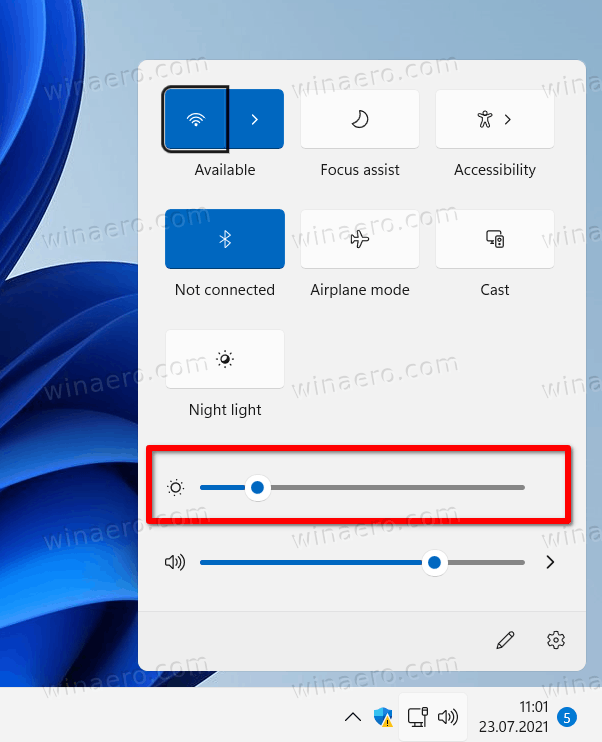
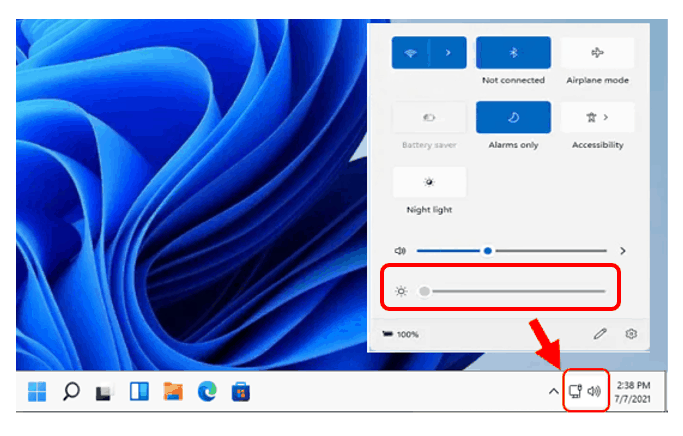
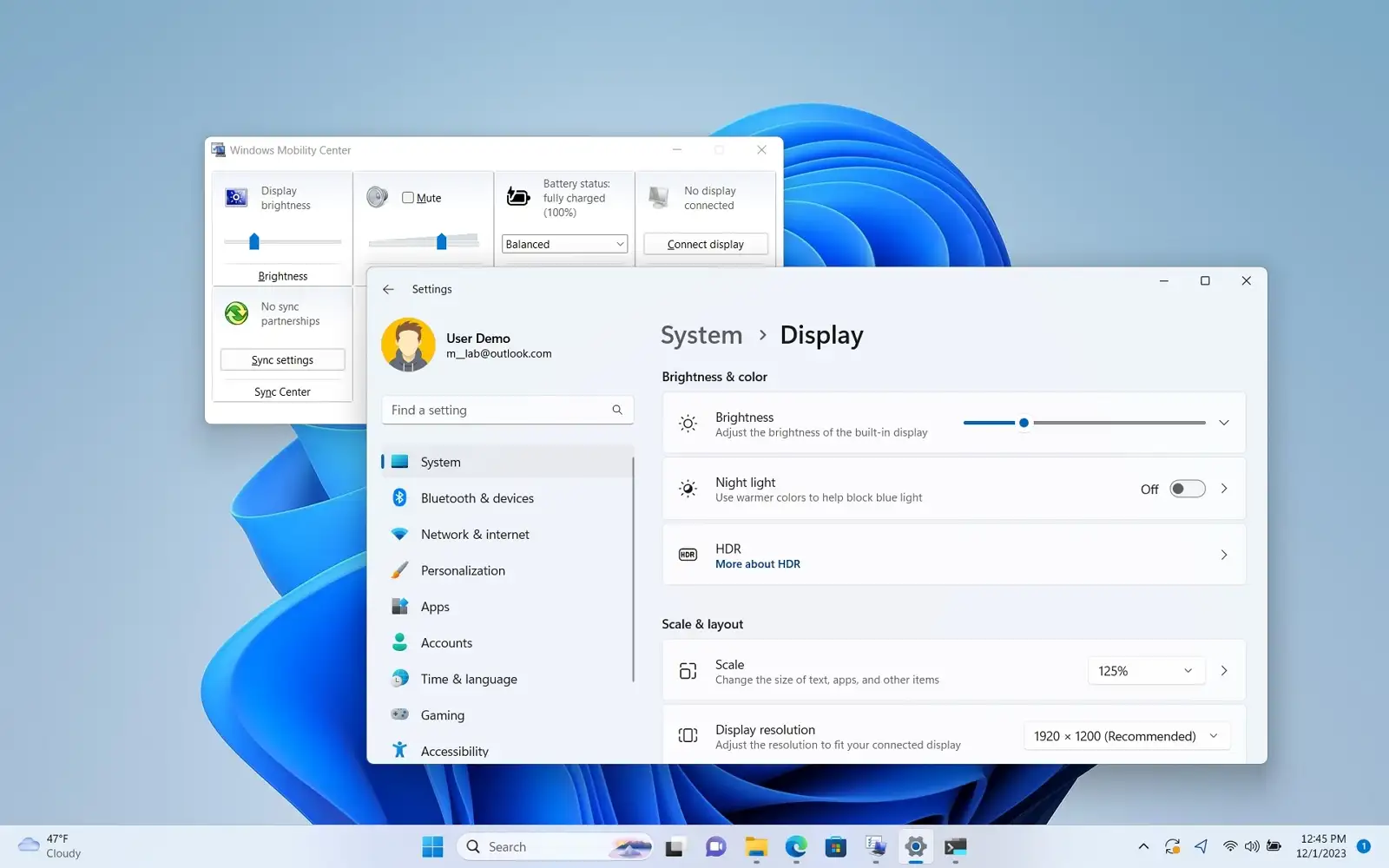
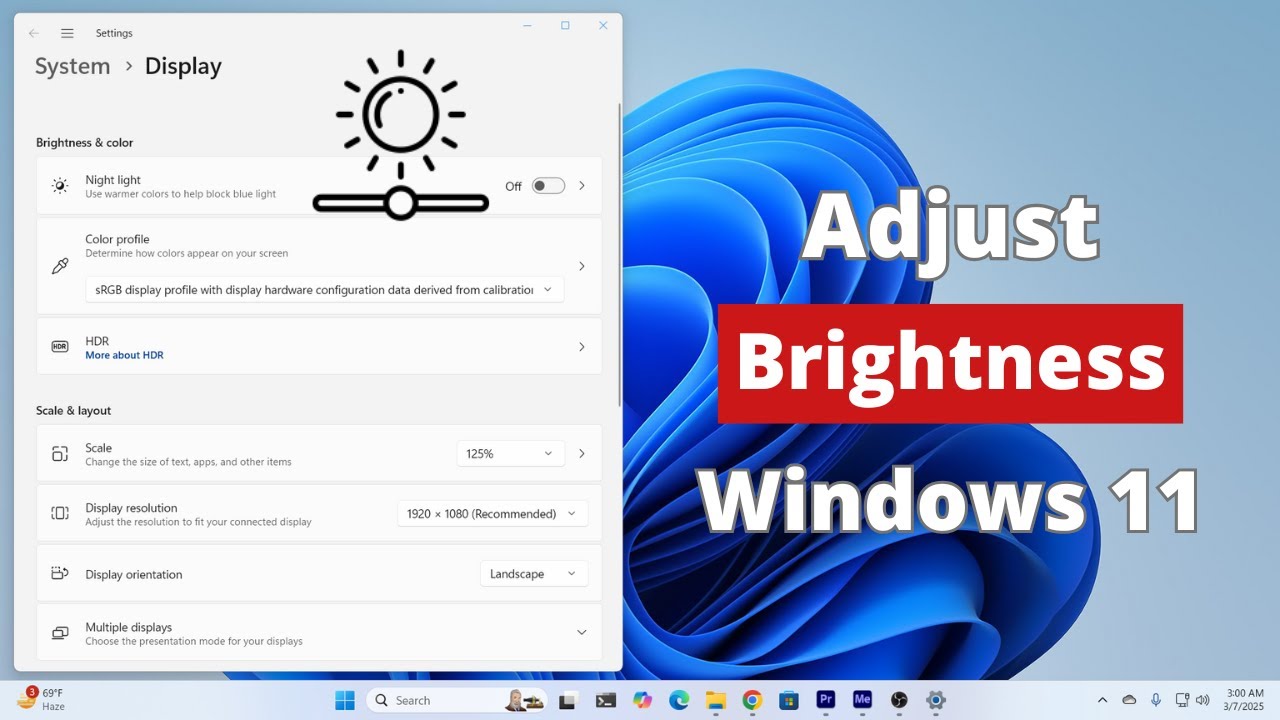
Windows 11 Brightness Control Taskbar









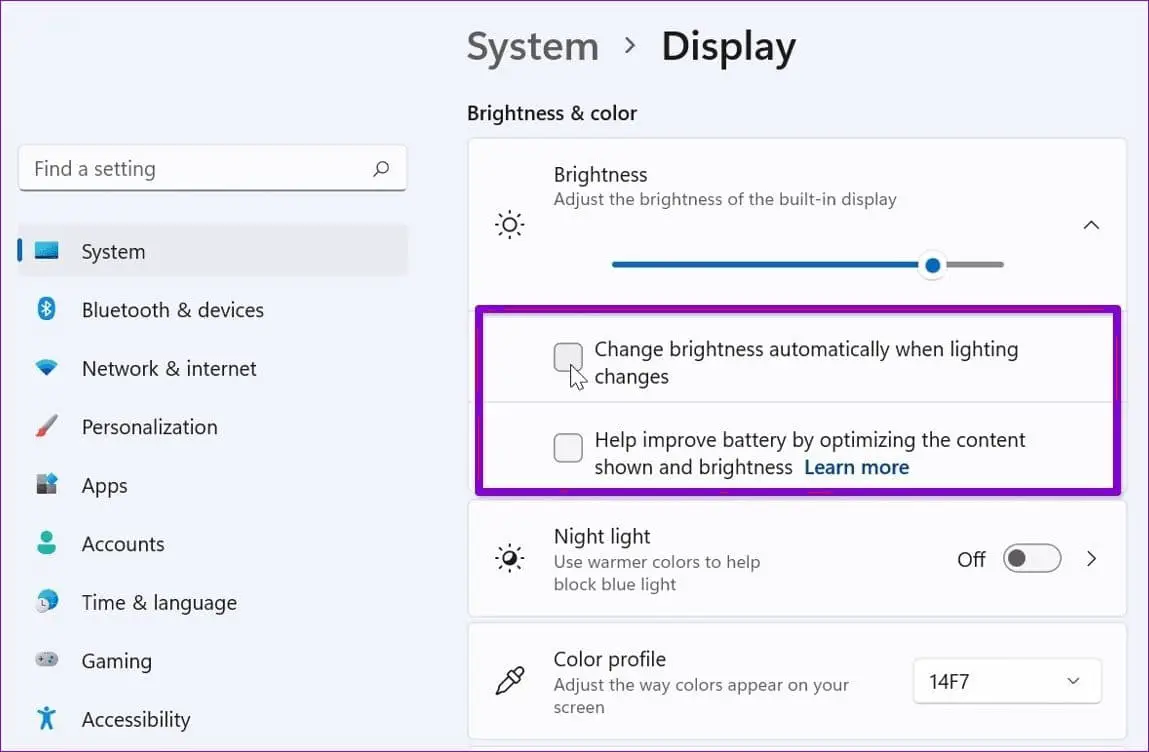

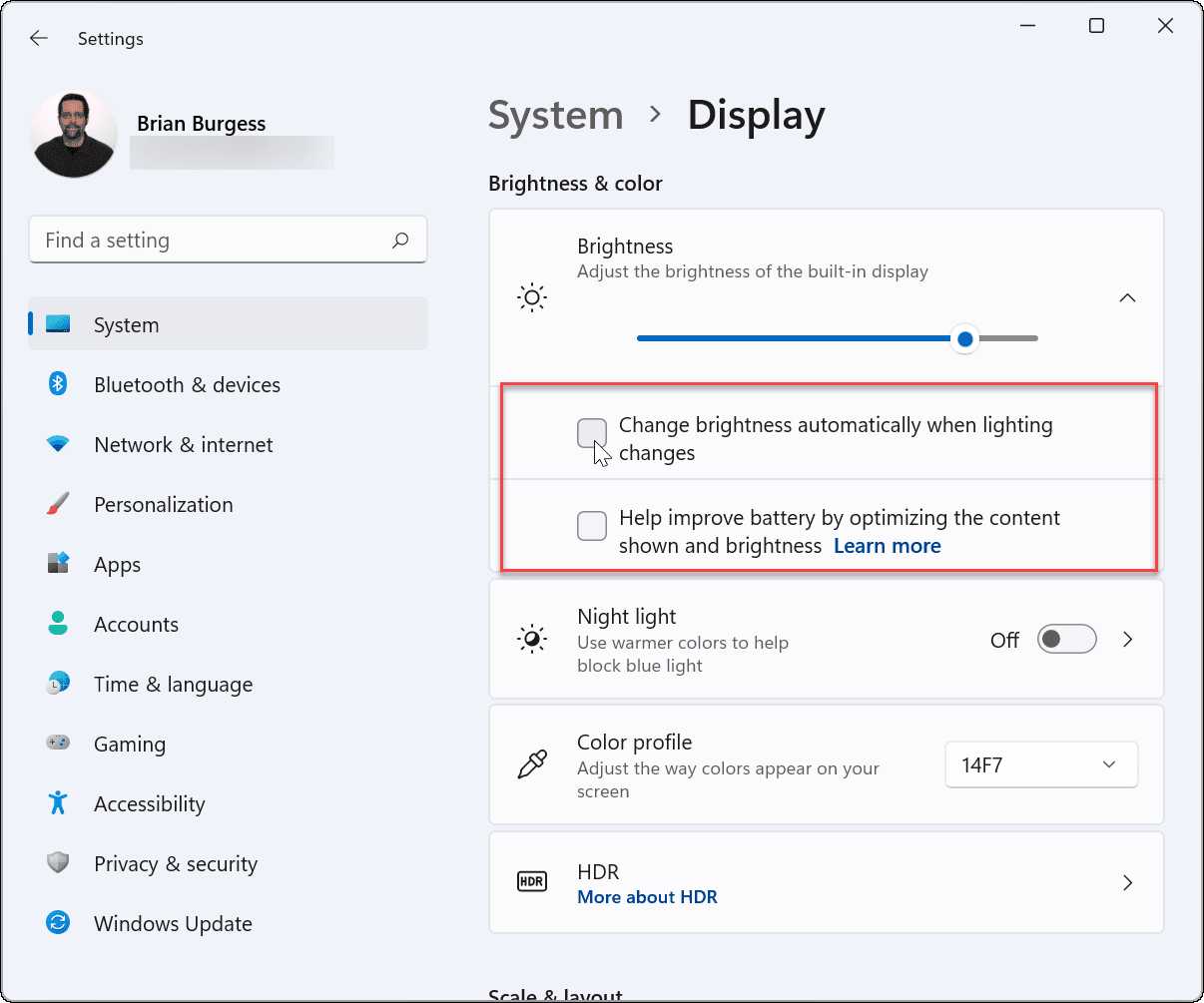

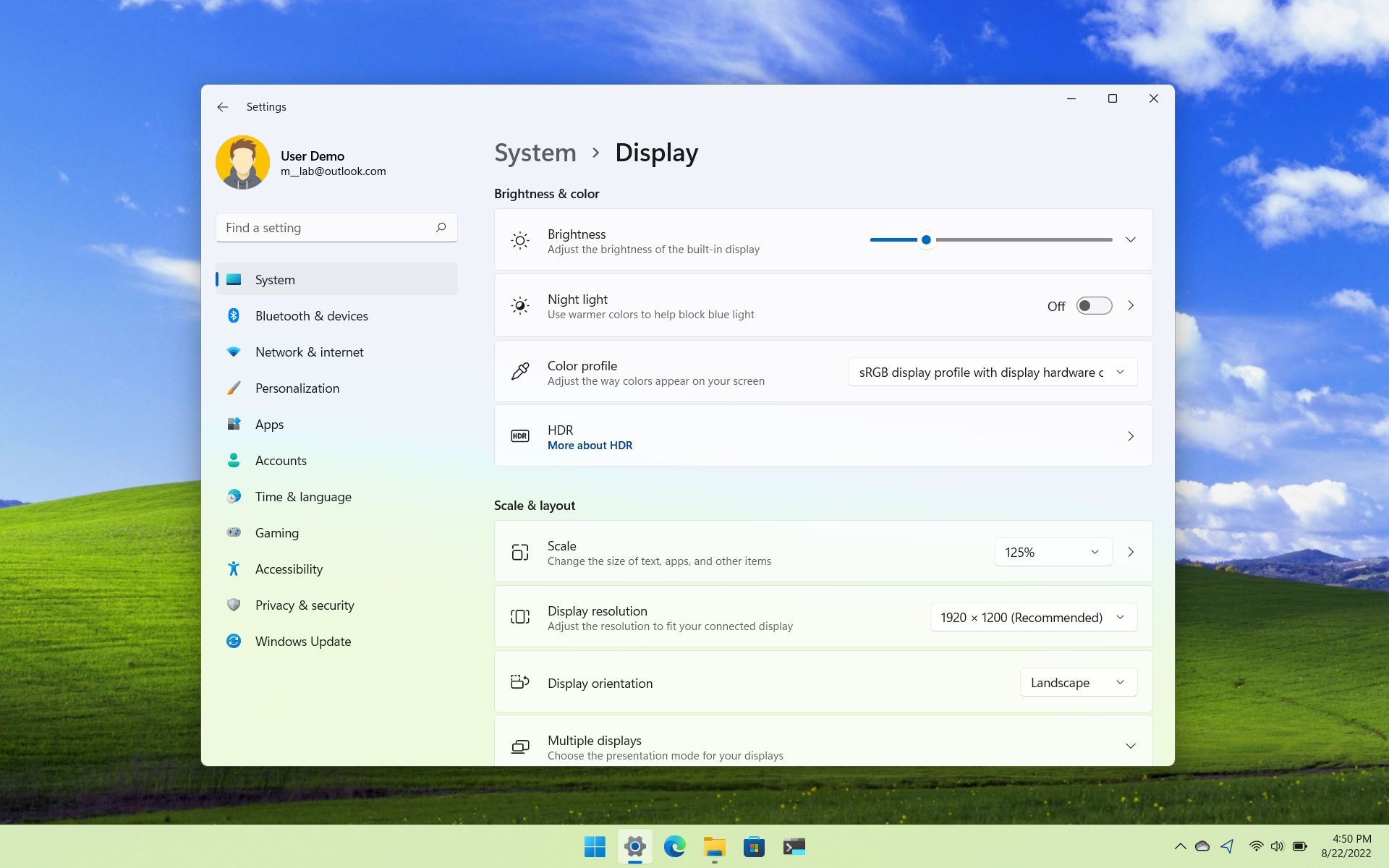

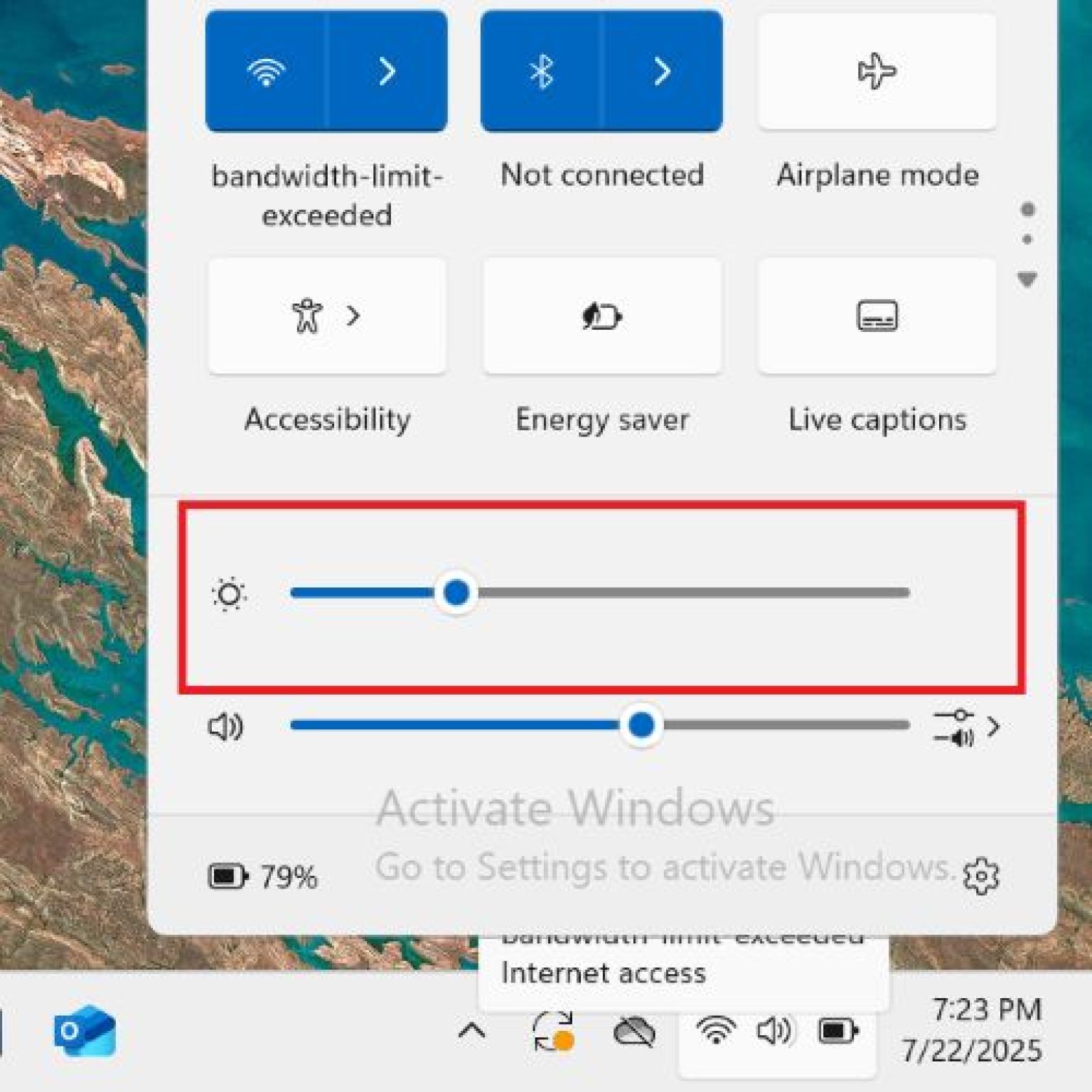




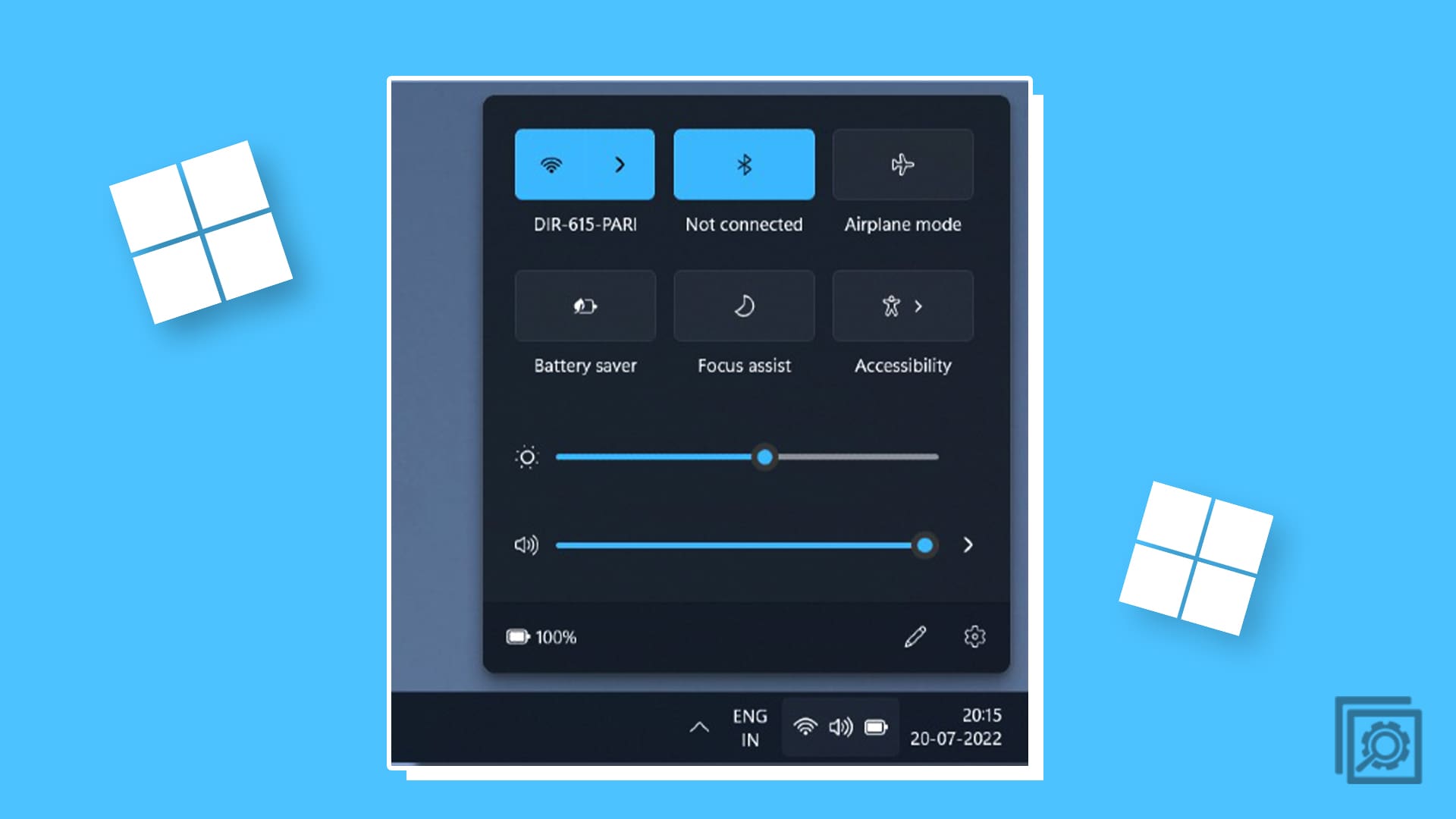



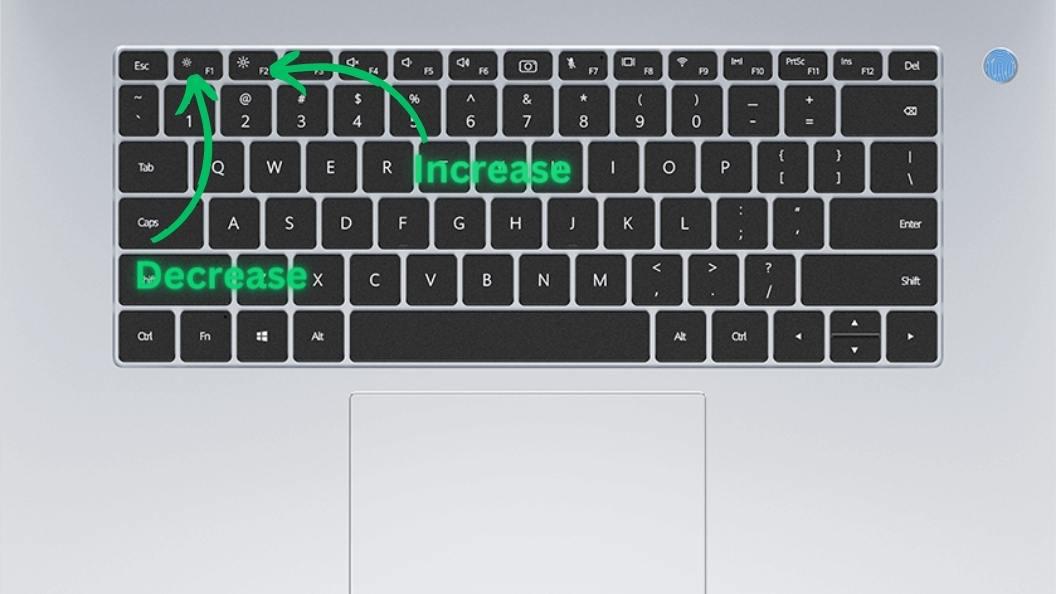





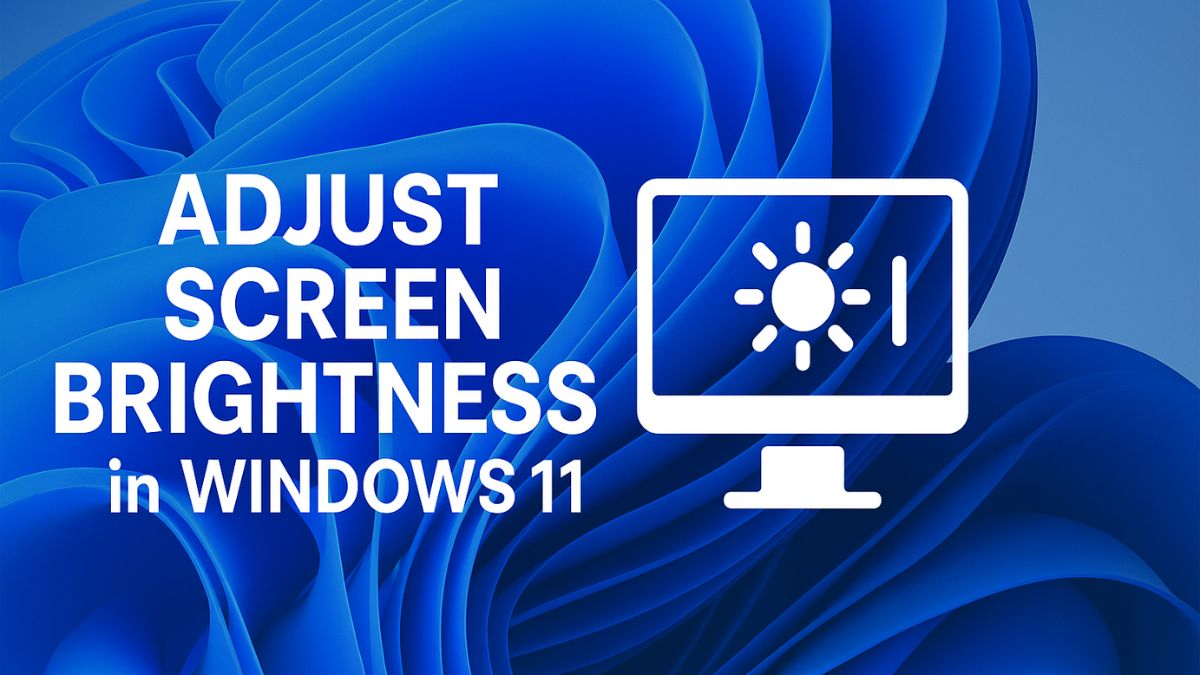


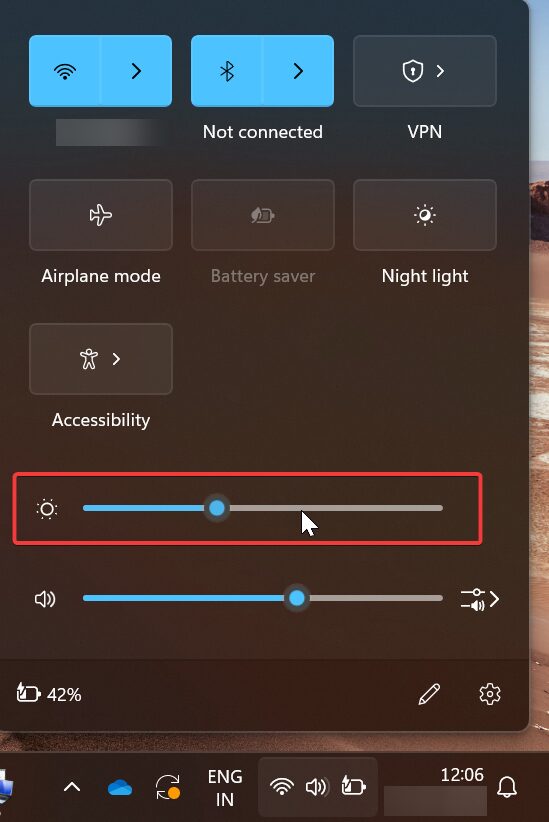
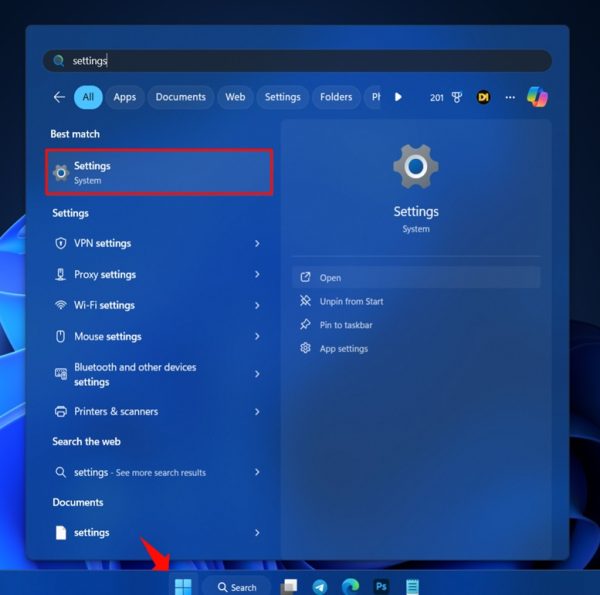
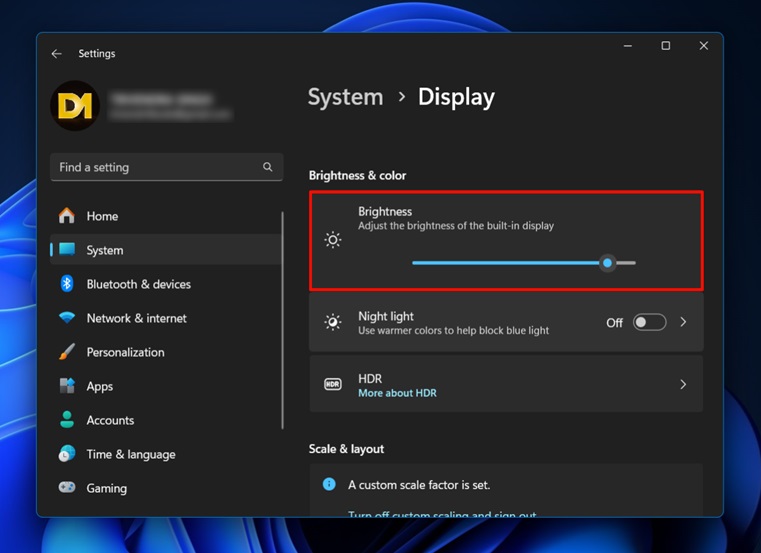
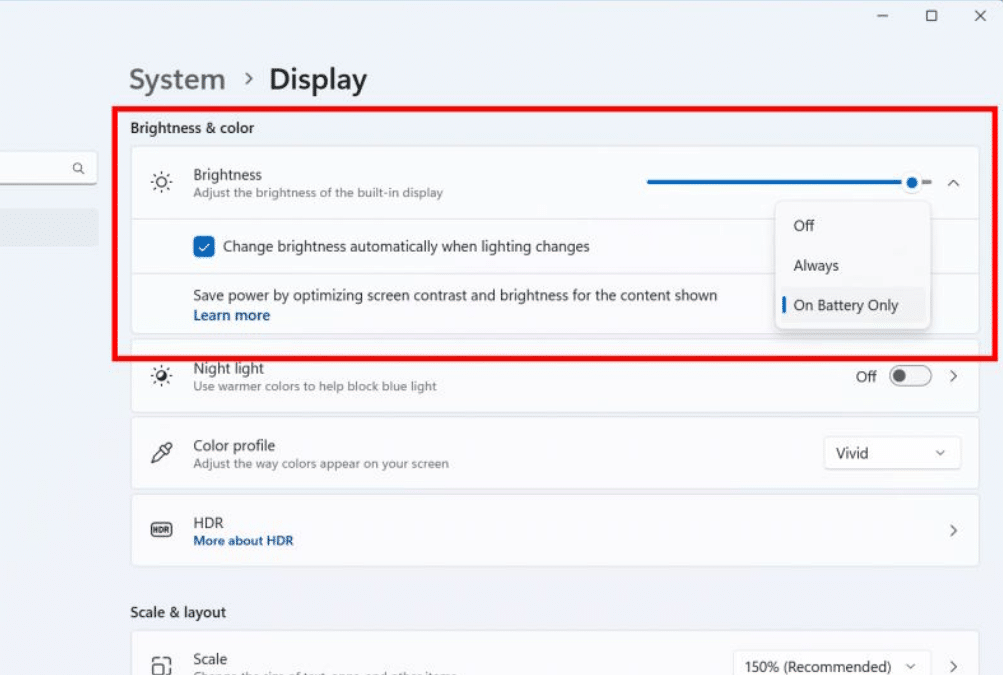
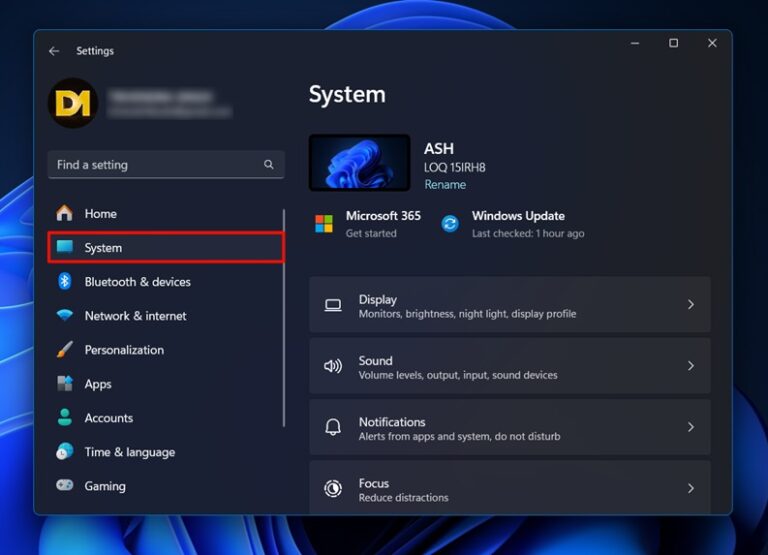
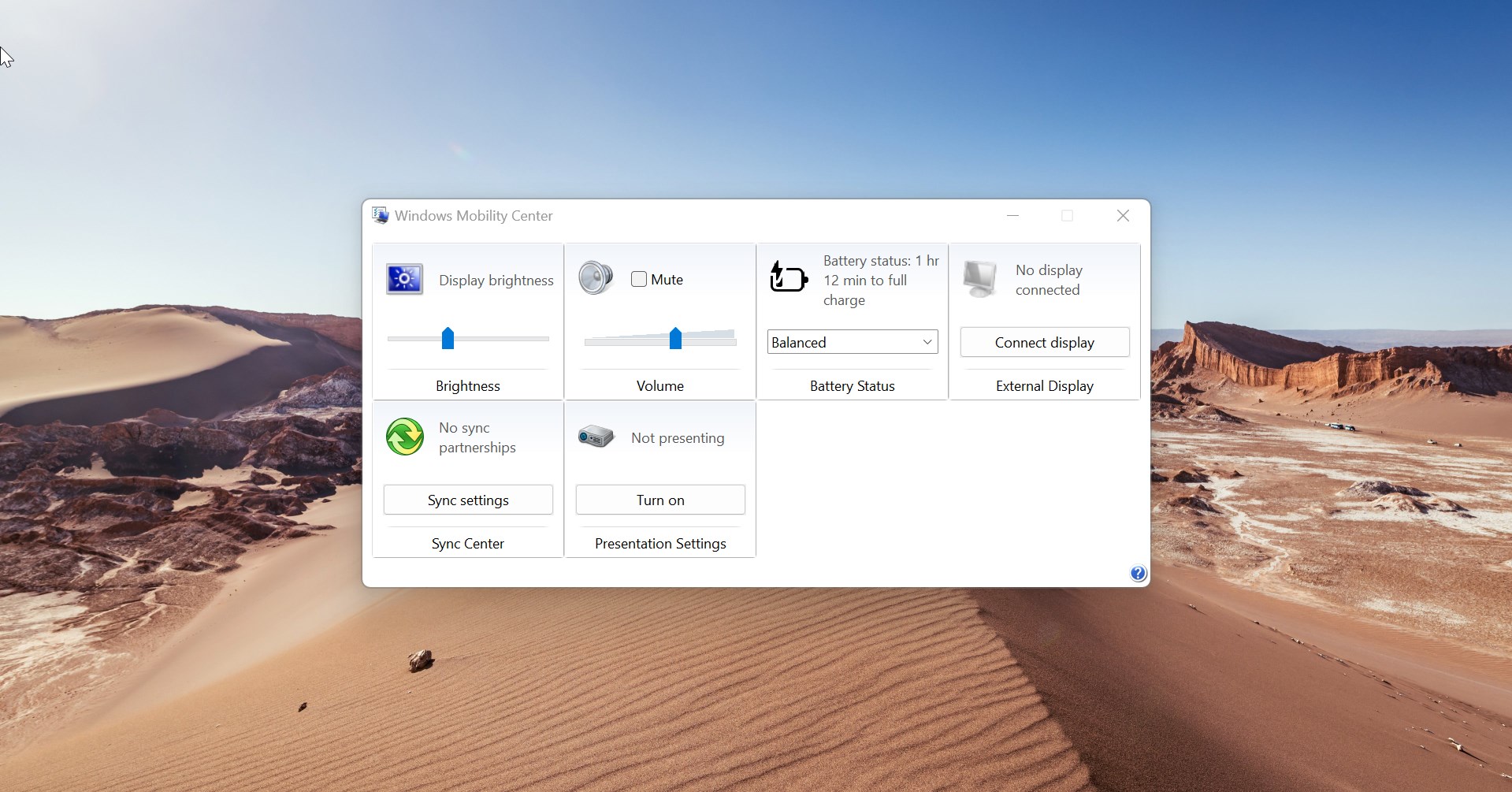



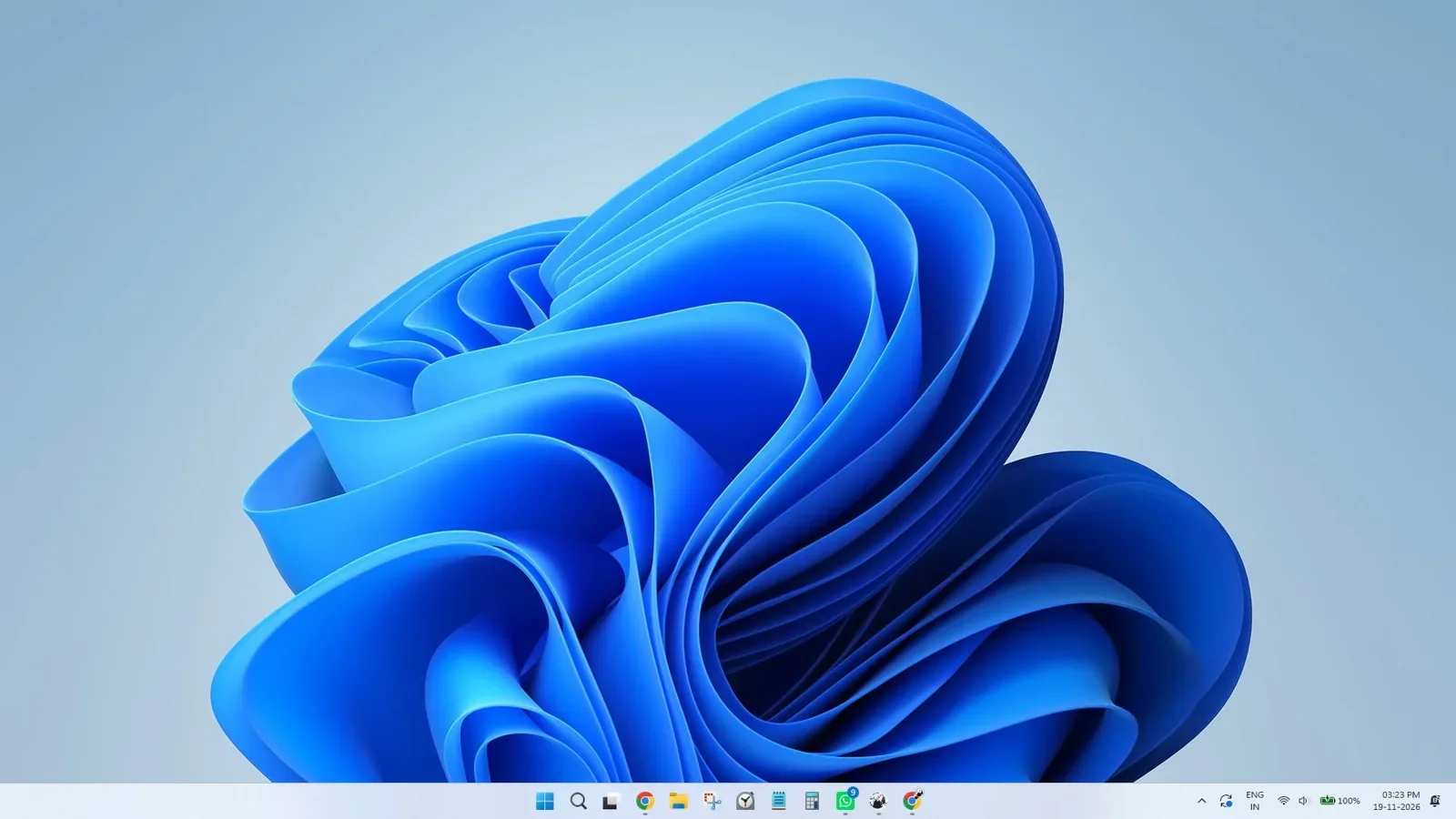
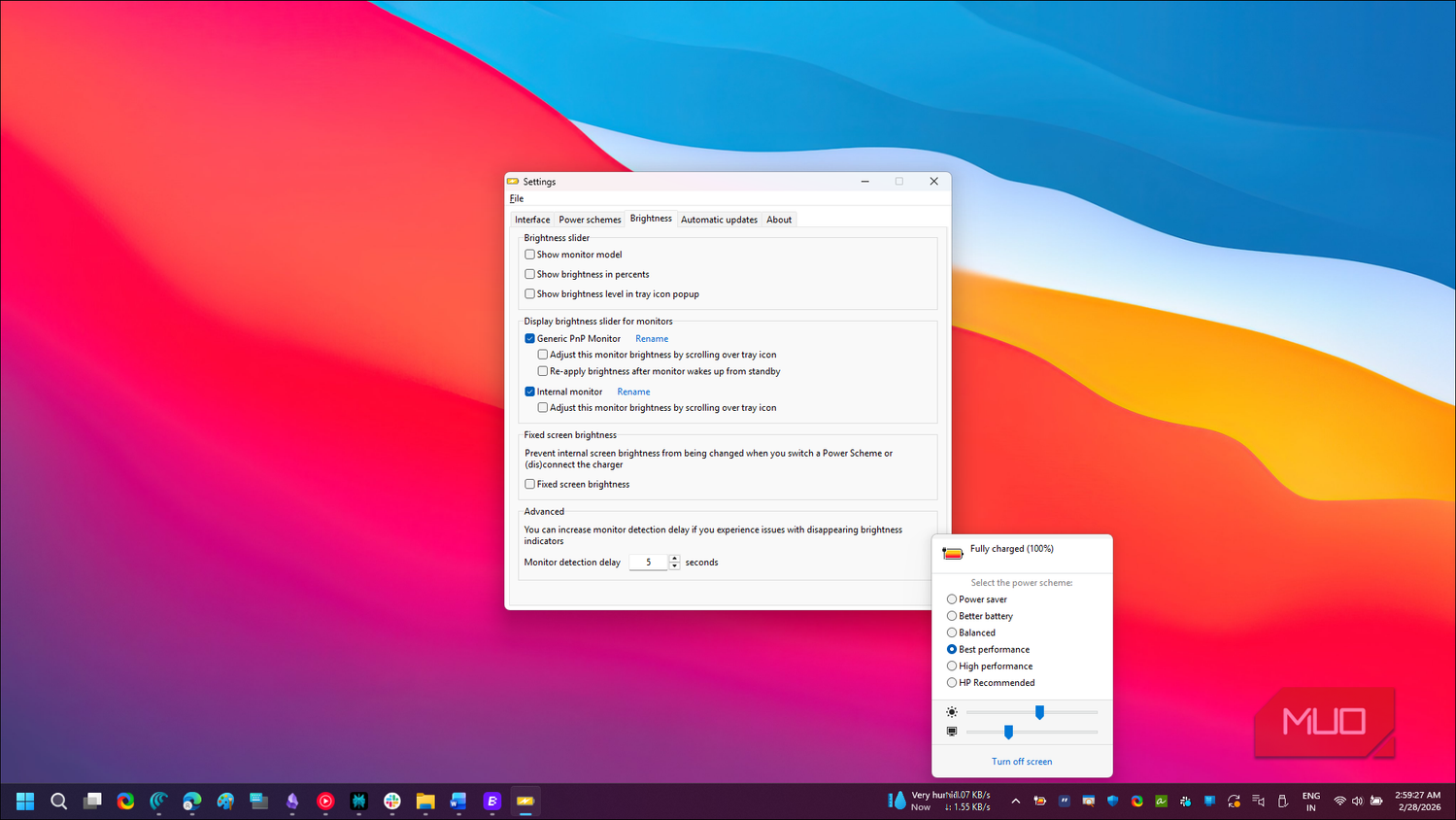
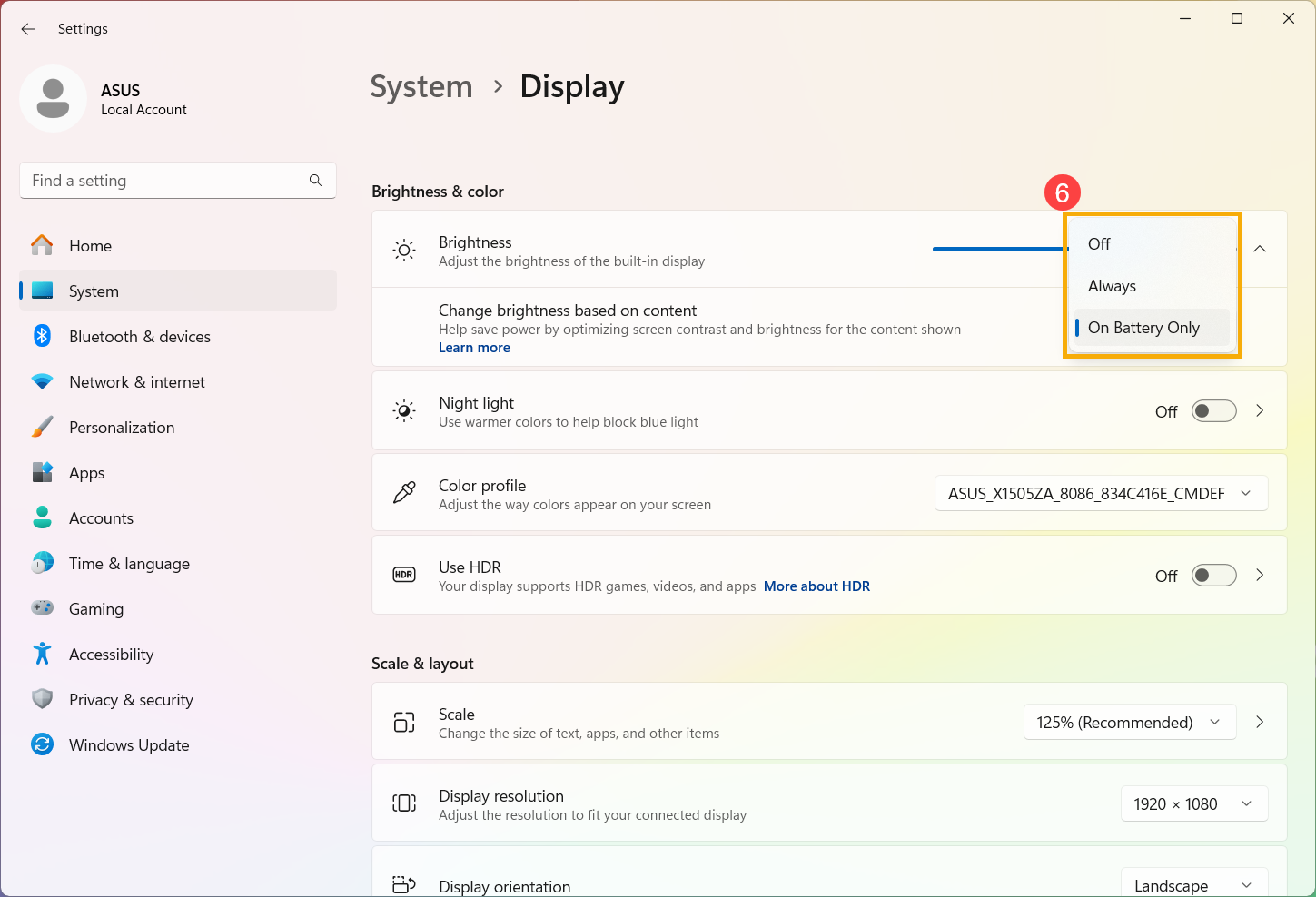
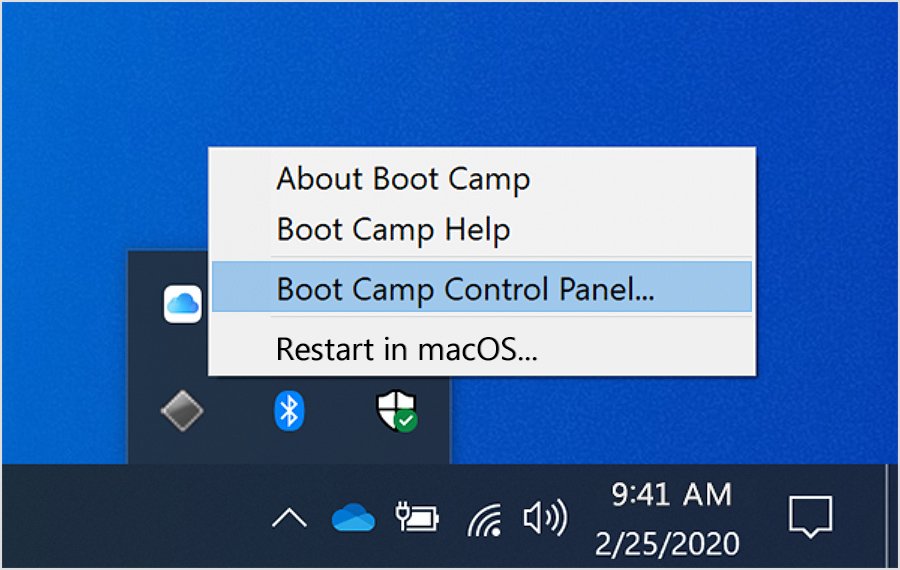

Support healing through substantial collections of medically-accurate Windows 11 Brightness Control Taskbar photographs. medically documenting blue, green, and yellow. ideal for healthcare communications and materials. Discover high-resolution Windows 11 Brightness Control Taskbar images optimized for various applications. Suitable for various applications including web design, social media, personal projects, and digital content creation All Windows 11 Brightness Control Taskbar images are available in high resolution with professional-grade quality, optimized for both digital and print applications, and include comprehensive metadata for easy organization and usage. Our Windows 11 Brightness Control Taskbar gallery offers diverse visual resources to bring your ideas to life. Regular updates keep the Windows 11 Brightness Control Taskbar collection current with contemporary trends and styles. Multiple resolution options ensure optimal performance across different platforms and applications. The Windows 11 Brightness Control Taskbar archive serves professionals, educators, and creatives across diverse industries. Cost-effective licensing makes professional Windows 11 Brightness Control Taskbar photography accessible to all budgets. Whether for commercial projects or personal use, our Windows 11 Brightness Control Taskbar collection delivers consistent excellence. Instant download capabilities enable immediate access to chosen Windows 11 Brightness Control Taskbar images. Our Windows 11 Brightness Control Taskbar database continuously expands with fresh, relevant content from skilled photographers. Advanced search capabilities make finding the perfect Windows 11 Brightness Control Taskbar image effortless and efficient.